
Data Security and Data Retention – Information Security Enhancements Project.
Project Introduction
Queen Mary University of London is committed to adopting a robust approach to our cyber security.
Alongside delivering the ISO 27001 project, which is committed to improving our resilience, we are also focusing on establishing robust policies, procedures and technologies to protect our data.
Without a clear view of what data, we hold, where is resides, and how it is classified, we cannot effectively prioritise risk mitigation and ensure compliance with regulatory obligations, including the UK GDPR and Data Protection Act 2018.
- For further information- please visit the Data Loss Prevention FAQ v1 [PDF 417KB]
This project is focused on two key workstreams:
- The development of an information asset register – which will provide a strategic overview of the information we hold, and,
- Deployment of a Data Loss Prevention Security Tool – see more information below about this tool.
Combined, these initiatives will support the ISO 27001 project, enhance compliance and strengthen data governance.
What is Data Loss Prevention (DLP)?
Data Loss Prevention (DLP) is a tool used by organisations to help protect sensitive information. It allows organisations to identify and prevent unsafe or inappropriate sharing, transfer, storage or use of data, therefore helping to protect organisations from data threats. As Queen Mary use Microsoft Office 365, DLP has been introduced on Microsoft products including OneDrive, SharePoint, Teams and Outlook and to Queen Mary managed devices, such as laptops.
Why has it been introduced at Queen Mary, and why is it important?
All organisations have obligations to protect sensitive and personal data. To support our commitment to data protection as outlined in Queen Mary’s Data Protection Policy, we have introduced DLP across Microsoft 365.
At Queen Mary, we need to process certain information as part of our everyday work, and sometimes this data may be sensitive or personal data. When working with and sharing data, there is a risk that unauthorised individuals gain access to our information – so it is important that we work together to protect it. Certain breaches have to be reported and may lead to regulatory action, which can have financial and reputational consequences.
DLP will support compliance, and in turn protect our valuable research and education activities, and our reputation as a leading university.
How does DLP work?
DLP is an automated scanning tool which is built into Microsoft 365. It looks for specific types of data based on criteria set by Queen Mary, such as bank account numbers, passport numbers or NHS numbers. The categories of data being monitored are medical, personally identifiable information, financial, technical and credentials. These criteria have been established in line with the Information Storage Matrix, part of Queen Mary’s DG09 Information Classification [PDF 367KB].
If the tool detects that these types of data are being shared or stored incorrectly, it will be logged by the tool and provide alerts through pop-up notifications. You may also be contacted by Queen Mary’s Information Security and Information Governance teams.
Who does DLP affect?
DLP will impact staff with a Queen Mary ITS account.
What does it mean for me?
If data is stored or shared incorrectly, you may receive a pop-up notification, called a policy tip message. This message is a warning to make you aware that incorrect storage or sharing of sensitive data has been detected by the tool.
There is a chance that you may never see these pop-ups, however if you work with more sensitive information, it is likely you may receive these.
These pop-ups will provide you with recommendations on what you should do / not do with the data, and sometimes they may block the activity on the data from happening e.g. sharing of the data. We recommend you review the information in the pop-up and carry out actions to either remove the sensitive data, or to ensure you manage the file appropriately. You can use the DG09 Information Classification [PDF 367KB] to provide support.
We have tuned the tool to minimise these blocks to prevent any potential impact on your work.
How do I know if I am working with my data appropriately?
Queen Mary’s DG09 Information Classification [PDF 367KB] outlines the expectations of those creating, handling, storing and disposing of information. The policy also includes the Information Storage Matrix which provides guidance on different types of data, their classification, and relevant storage solutions (see Appendix B).
As a reminder, all staff must undertake the associated training, which can be found here: https://qmplus.qmul.ac.uk/course/view.php?id=21693.
What do the pop-up notifications / policy tips look like?
Pop-ups on Microsoft Office Apps:
These pop-ups are built into Microsoft applications and will appear as a banner. For certain applications this pop-up may also include information about the data which has been found.
DLP may sometimes wrongly flags data or actions as sensitive. If this happens, you will see an override option in the pop-up. Use it to remove the alert on the file or email. All overrides are logged and reviewed by the Information Security Teams.
Below is an example of a pop-up in Word, other office applications such as Excel are very similar:

Navigating to the File Info tab will present additional information regarding the information found in the document that DLP is considering sensitive, example below:
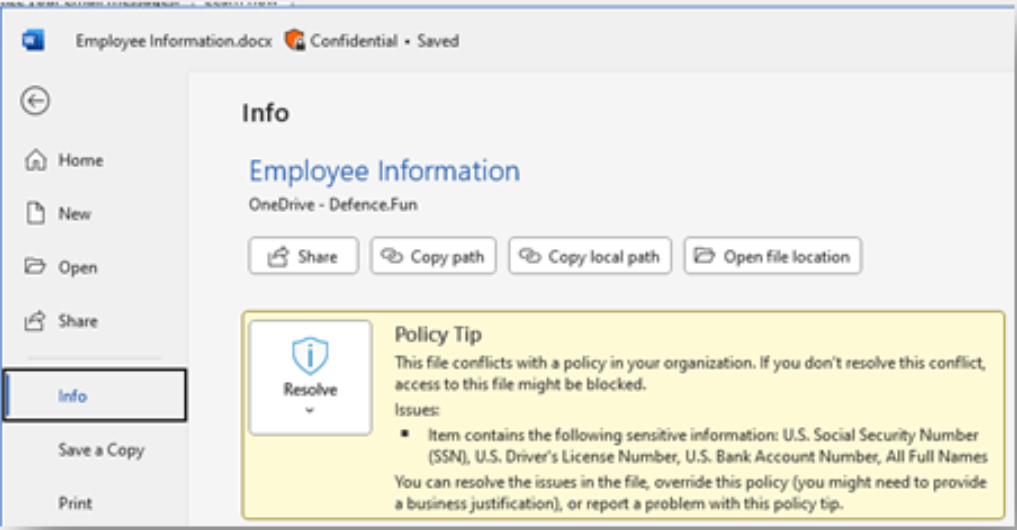
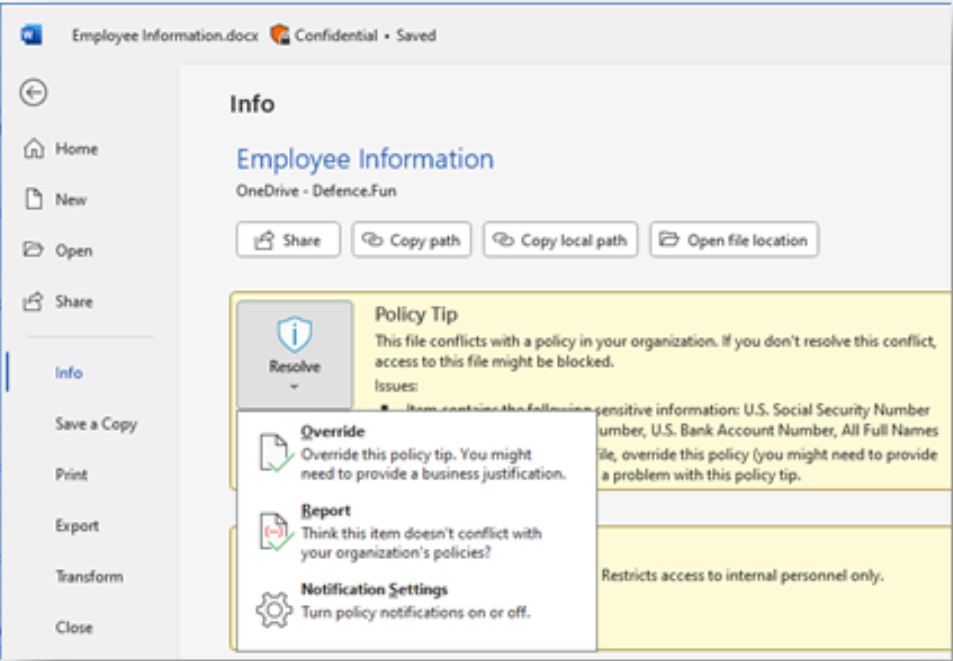
If the document flagged does not contain sensitive information or has a valid business reason for its use, please use the override and report functions. The override function is used when the information is correctly identified but there is a justified business need for it in this file. The report function is used when the match is incorrect or not found in the document. Example below:
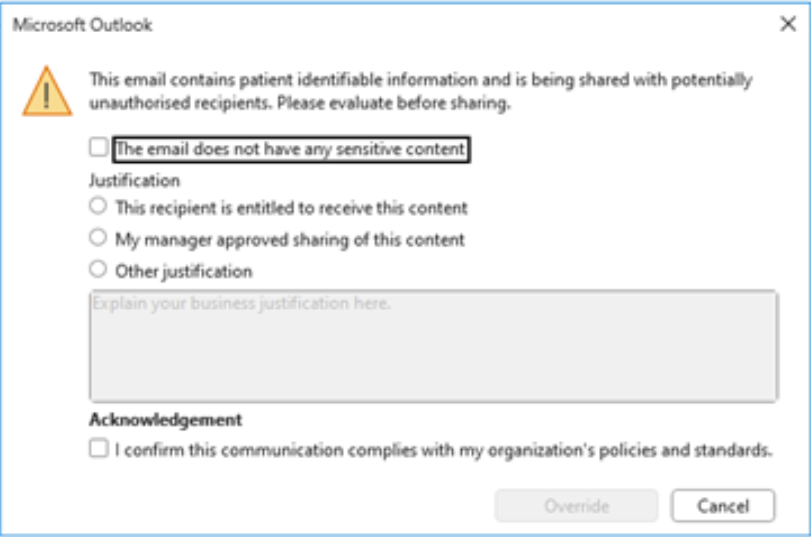
In Outlook, if DLP detects sensitive data being shared with potentially unauthorised recipients, pop-ups in the form of a dialog box may appear once the send button is pressed. These pop-ups present options to confirm if the data does indeed contain sensitive information and to provide a justification for sharing it with the recipient. You can cancel this process at any time to prevent the message from being sent. Example below:
Sensitivity Labelling Taxonomy
Sensitivity Labelling at QMUL
Why this is important
Queen Mary University of London (QMUL) is strengthening how we protect and manage sensitive information. To support this, we are introducing Sensitivity Labels in Microsoft 365.
This will help us:
- Protect confidential data such as research, student, and staff information.
- Prevent unauthorised actions such as printing, copying, or forwarding sensitive documents.
- Apply automatic watermarks with date and time to printed documents.
- Alert the security team if sensitive information is shared outside the university.
- Monitor how confidential data is used, while respecting privacy and policies.
What are Sensitivity Labels?
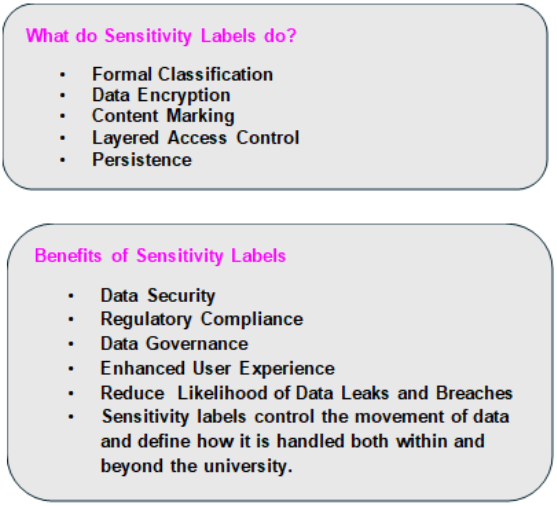
Microsoft Purview Sensitivity Labels allow us to classify and protect data across emails, documents, and repositories. They define how information can be stored, shared, and used, keeping it secure whether at rest or in transit.
Think of sensitivity labels as a digital ‘stamp’ applied to content, signalling its sensitivity and how it should be managed.
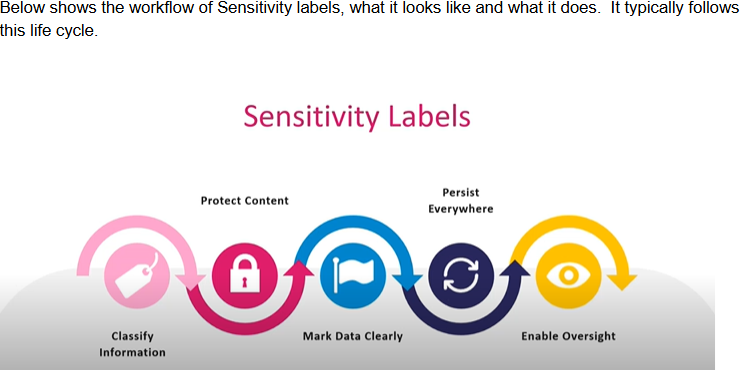
Lifecycle and Classification
Sensitivity labelling begins with the classification of content using a predefined schema. Labels are then applied to place a clear digital identifier on documents and data.
Access Controls and Protection
Once a label is applied, associated protection policies determine who can access the content and what actions they can perform—such as editing, copying, or printing.
Visual Markings
Labels can include visual indicators like headers, footers, or watermarks to clearly highlight sensitive or highly confidential information.
Persistent Protection
Labels and their protections remain with the content wherever it goes—within the organisation, in transit, or stored externally.
Monitoring and Visibility
All activity related to labelled content—such as label changes or file renaming—is fully auditable and can be monitored through Microsoft Purview.
What this means for you
- Clear labelling: You will see labels such as Open, General, Restricted, Confidential, or Highly Confidential when working with documents and emails.
- Automatic protection: Some labels may apply encryption, watermarking, or restrictions on sharing.
- Safer collaboration: You’ll still be able to work with colleagues and approved partners, but sensitive data will be better protected.
How do they work?
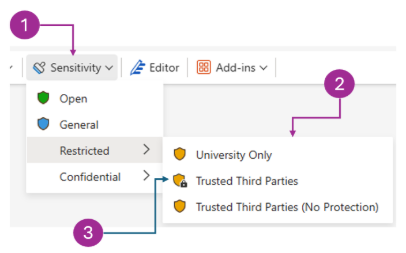
- In Word, Excel, and PowerPoint, a Sensitivity button appears on the toolbar. You simply click it and choose a label (Open, Restricted, Confidential, or Highly Confidential).
- In Outlook, you can select a sensitivity label while composing an email, directly from the message toolbar.
- Depending on the label, the system may automatically add headers/footers, apply watermarks, or restrict actions such as forwarding. Labels such as Confidential or Highly Confidential may also apply encryption (RMS) to protect the content.
Ways to Apply a Label:
Manual Selection
When creating or editing a document or email, look for the “Sensitivity” button in the toolbar (usually near the top of the window).
- Click the button and choose the appropriate label from the dropdown list.
- Some labels may have sub-labels to allow for better handling of sensitive data.
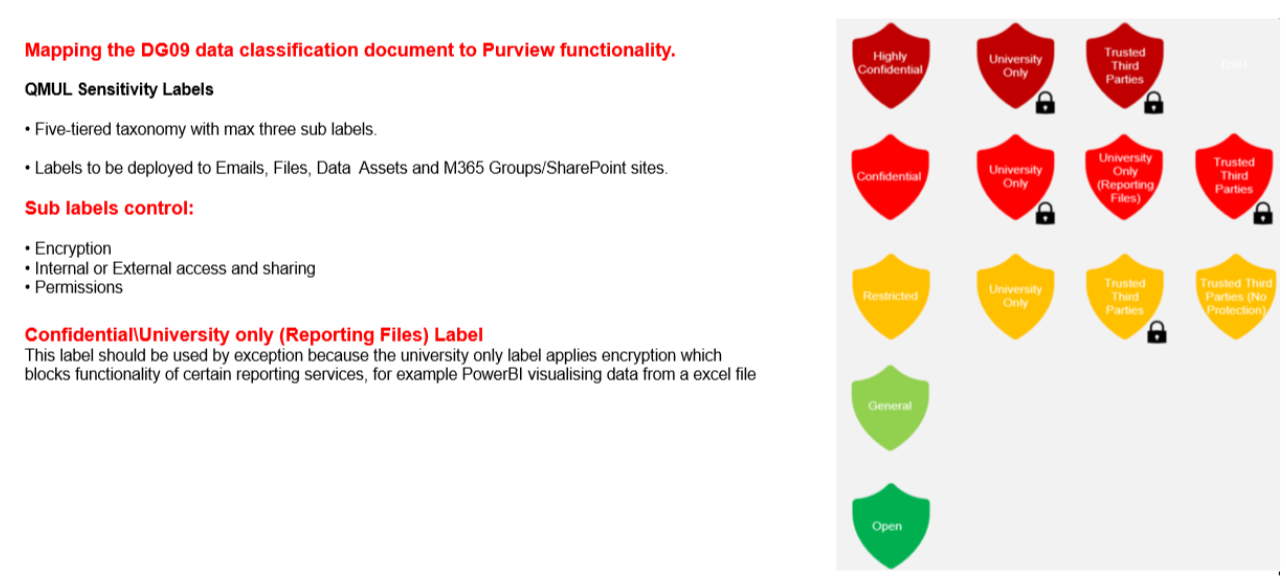
Labels with the padlock symbol will apply encryption to the document or email for extra protection
Automatic or Recommended Labels
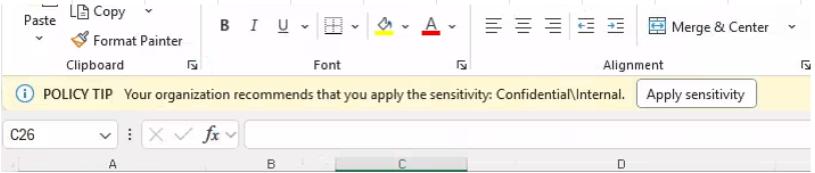
In some cases, Microsoft 365 may automatically apply a label based on the content (e.g., if it detects credit card numbers or personal data).
You might also see a recommendation to apply a label—this will appear as a prompt or banner at the top of your screen.
Default Labels
Some departments or document types may have a default label applied automatically. This means any new email or document will automatically inherit a label, but you can change it if needed.
What Happens After You Apply a Label?
Labels may incorporate visual markings such as headers, footers, or watermarks. Additionally, they can impose protection settings, including encryption or restricted sharing. These labels persist with the file or email, even when the item is shared externally.
For the smoothest experience when working with protected files, use sharing links from SharePoint or OneDrive.
When generating a link, always use the “Send” button to invite users directly. This ensures they are properly registered as guests within our identity platform, enabling secure and seamless access.
When sharing with external 3rd party providers, consider the following!
When files and emails protected by Microsoft account-based labels are shared internally or externally, end users experience seamless access. However, when collaborating with third-party service providers (such as Google), user experiences may differ. It is, therefore, important to be aware of these potential impacts when sharing content externally.
For instance, when sharing with a third-party service like Gmail and protection has been applied via labelling, consider the following:
- Recipients of protected files must possess a Microsoft account. Free Microsoft accounts can be associated with other services, such as Gmail.
- The personal version of Office does not support access to protected files via a browser i.e. directly from OneDrive.
- Once the third party has obtained a Microsoft account, they may access protected data in the following ways:
- Documents can be opened using an Office application; for this option, the external user must be added as a guest within the QMUL tenant.
- If the desktop version of Office cannot be used, the document can be accessed directly through a SharePoint or OneDrive site hosted by QMUL. This method allows the external user to open the file using the web version of Office without being a guest in the tenant.
What Labels Will You See?
- You’ll soon notice new labels when creating or editing documents and emails. Not all labels will be available to all users; these will be deployed on a requirements basis. Here’s a quick overview of the available labels
- All users will see and can apply the following labels:
- OPEN
- GENERAL
- RESTRICTED (HAS THREE SUB LABELS)
- CONFIDENTIAL (HAS THREE SUB LABELS)
- HIGHLY CONFIDENTIAL (HAS TWO SUB LABELS)
Data Classification and Access Control
Institutional data is classified to ensure appropriate handling according to sensitivity.
Classification ensures:
- Confidential, institutional, or personal information is protected.
- Data is shared and accessed only by the correct individuals.
- Access is role-based, not dependent on grade or position title.
Accurate labelling is essential to:
- Protect confidential and personal information.
- Enable compliant data sharing.
- Ensure users only access information relevant to their roles.
Supporting Frameworks and Regulations
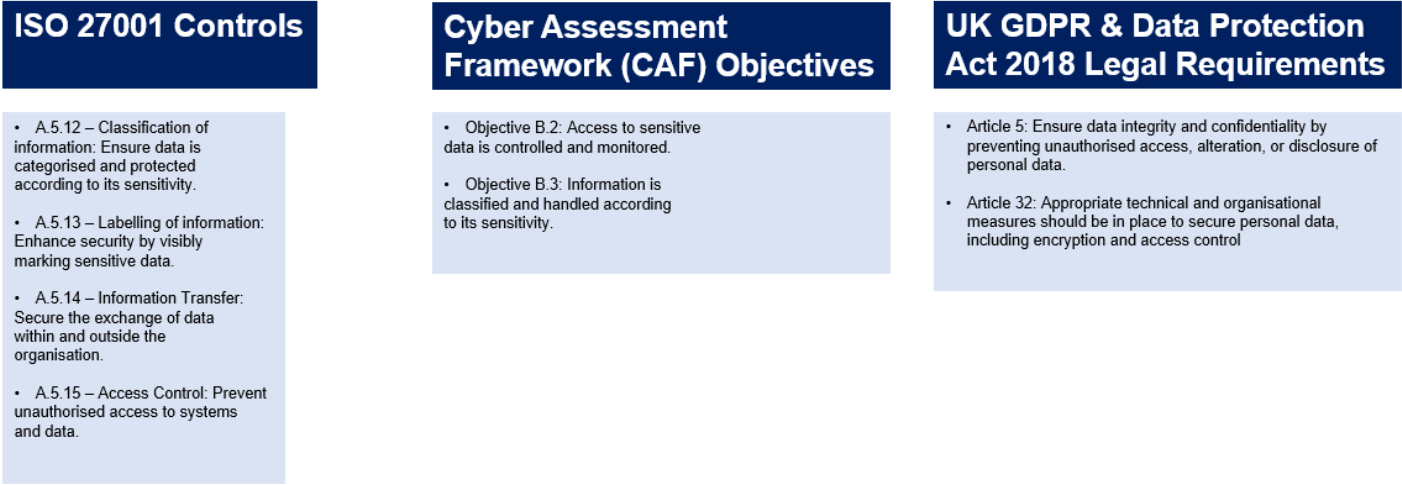
Implementing sensitivity labels supports adherence to security frameworks and regulatory requirements, helping QMUL maintain compliance and strengthen data protection.
Trusted Third Parties
"Restricted Third Party" labels allow users to specify recipients directly, as no predefined trusted list exists. Access is fully auditable, with offline access allowed for up to 30 days by default, adjustable as needed.
If a third party is using non-Microsoft platforms (e.g., Google Workspace or Chromebooks), we recommend sharing “Trusted Third Party” files as a SharePoint or Teams link rather than as an attachment.
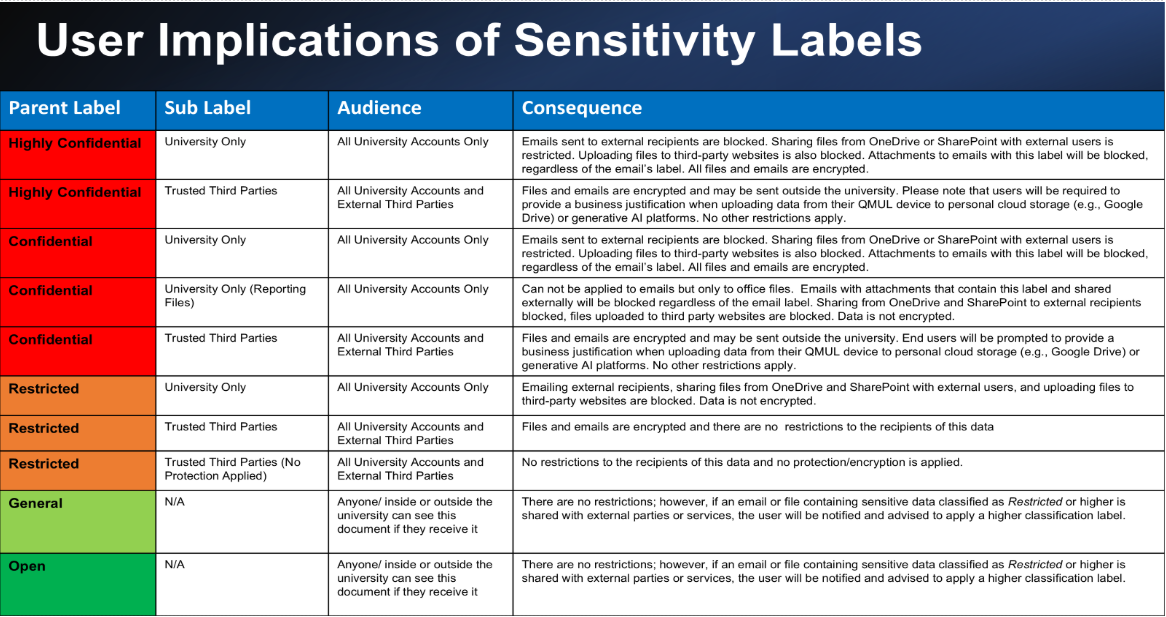
What Are the User Implications of Sensitivity Labels?
Below, you will find a table outlining the purpose and appropriate use of each label, along with the implications of applying them. Each label has specific rules and behaviours applied, and the table is intended to help clarify these for you.
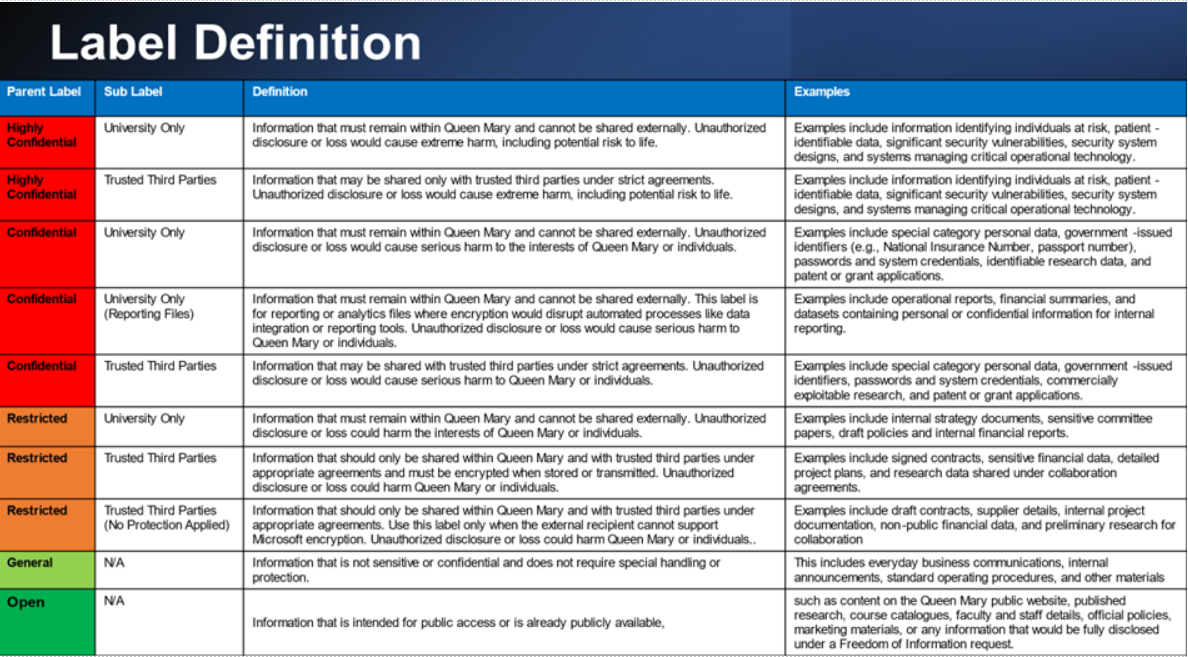
Label Definitions
Below is an explanation of each label along with examples of appropriate use
What Do You Need to Do?
- Start using the labels when prompted in Word, Excel, PowerPoint, Outlook, and Teams.
- Choose the label that best matches the content’s sensitivity.
Ask for help if you’re unsure which label to use (see below).
Need Help?
Below are some handy links to provide information on Sensitivity Labels:
DG09 Information Classification Policy
Please find the link to the QMUL DGO9 Policy [here]
At Queen Mary University of London (QMUL), DG09 refers to the Information Classification Policy, which is part of the university's broader Information Governance framework.
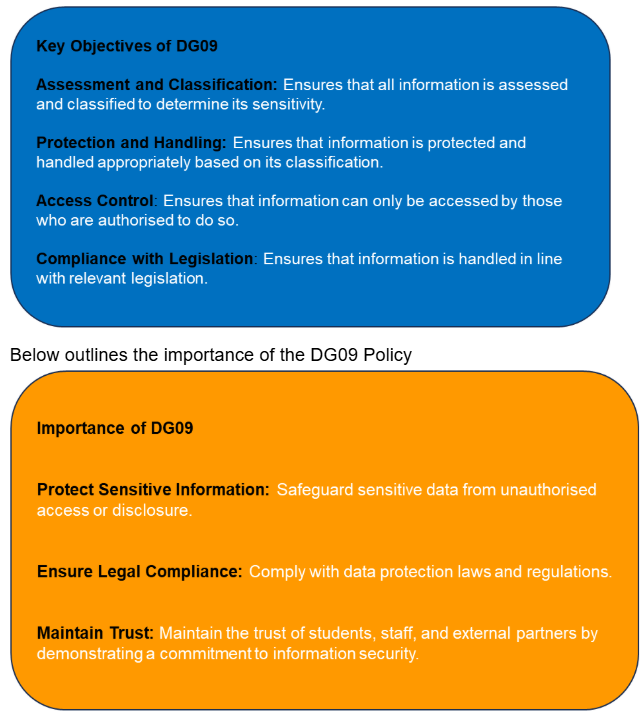
This policy is designed to ensure that all information held by QMUL is assessed and classified according to its sensitivity, so that it is protected, handled, and disposed of appropriately, and can only be accessed by those who are authorised to do so and in line with legislation.
Topics covered:
- Information Classification
- Information Storage
- Information Handling
- Information Disposal
Below outlines the Key Objectives of the DG09 Policy
Future plans
QMUL will expand Sensitivity Labelling to cover more systems and repositories across the university. We will also integrate with Data Loss Prevention (DLP) and Insider Risk Management tools to provide even stronger safeguards.
Support and guidance
Quorum Cyber, our implementation partner, will help us configure labels, provide guidance, and ensure the system is simple to use. Training and step-by-step guidance will be shared with all staff and students before rollout.