
Link block
A link block allows you to add signposting links that don't take up as much space as a Card. Find out how to add them to a page, and what information to include.
When to use Link Blocks
The Link Block content type allows you to signpost to links on a webpage in a way that stands out. This content type takes up less space on the page than our default signposting content type – Cards.
Example
A Link Block content type will include -
- Title
- Description sentence
- Link
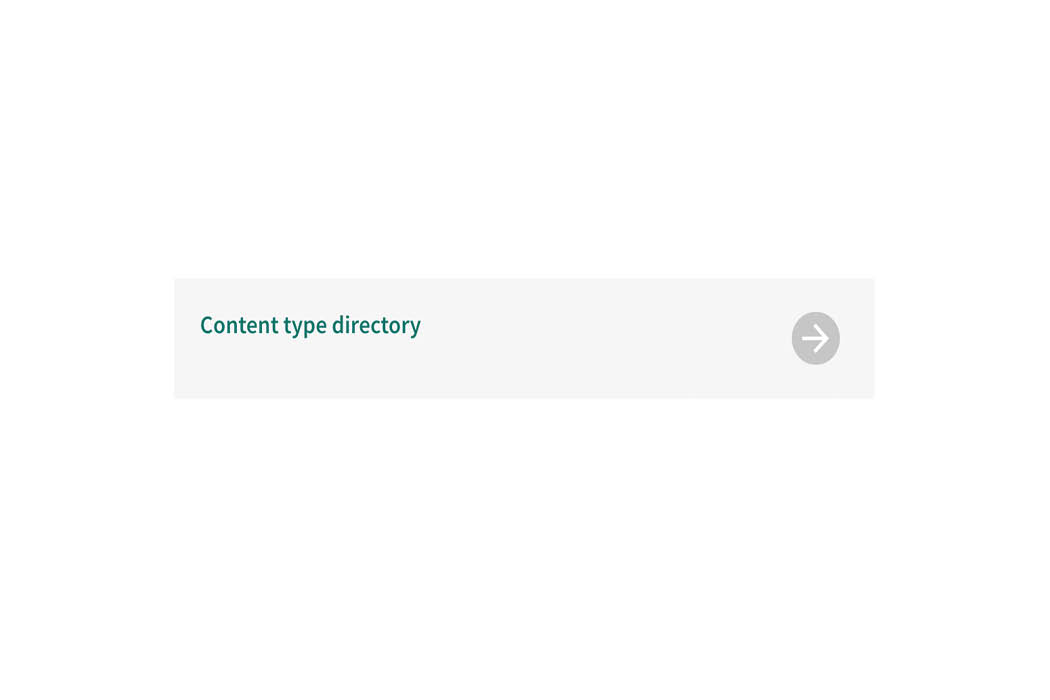
Example of a Link Block on a T4 webpage.
Creating the Link Block content type
Components
The Link Block content type only has one component, and you add that to the webpage you would like it to appear.
If the content type is not listed as an option once you have selected '+ Add Content', please contact websupport@qmul.ac.uk.
Adding the content type to your webpage
Name
This is how your content type will be named within the backend of T4 and will not be publicly visible.
Heading
This should be the title of the page you are signposting to.
Supporting text
This is the description sentence for the page you are linking to.
Link
Here you link to the page you are signposting to.
- Section link – Use this to link to a T4 webpage.
- Content link – Use this to link to a specific T4 news story or staff profile.
- External link – Use this to link to a page outside of T4.
Height
Keep as ‘short’ unless instructed to do otherwise.
Width
Keep as ‘narrow’ unless instructed to do otherwise.