
Multi-Factor Authentication (MFA)
Multi-factor Authentication (MFA), also referred to as two factor authentication (2FA), adds an extra layer of security when accessing some online services. You may already use some form of MFA for online banking or to access your personal email account.
At Queen Mary, authentication requires a username, password and MFA to grant access.
How to use Microsoft Authenticator Prompts
Microsoft auth prompts:
On login, after multifactor authentication, you may be presented with the following prompt to set up alternate authentication methods. This is expected and is part of a Microsoft change to the way we login to sites.
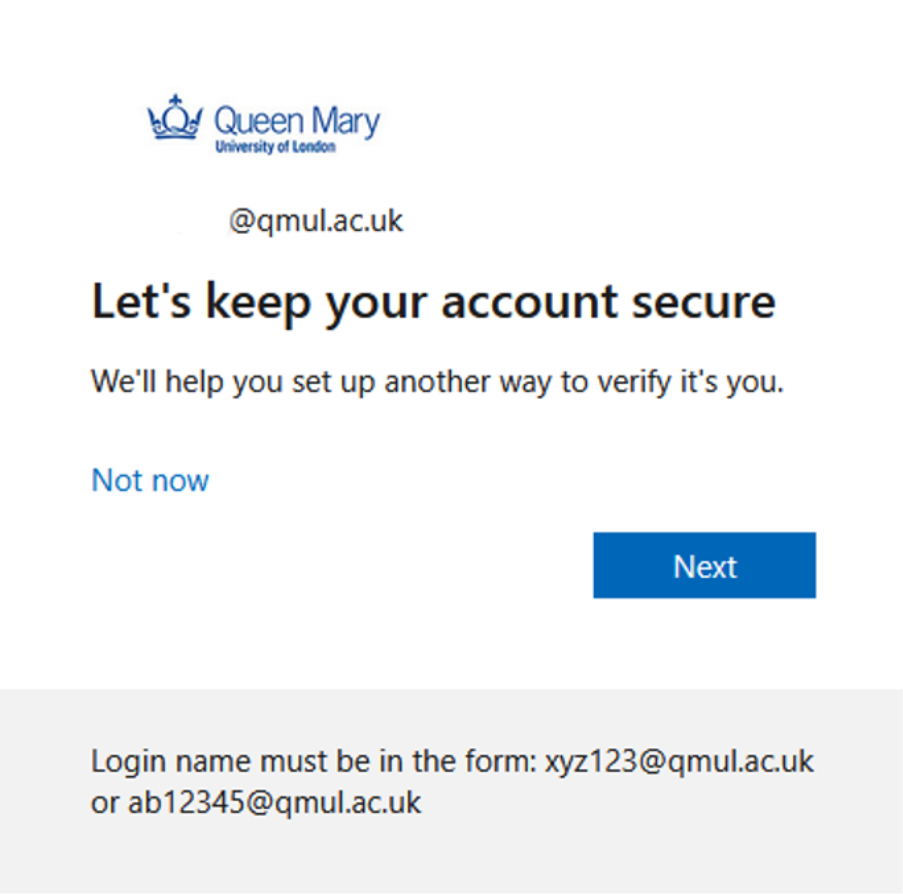
On the let's keep your account secure screen select 'Next'
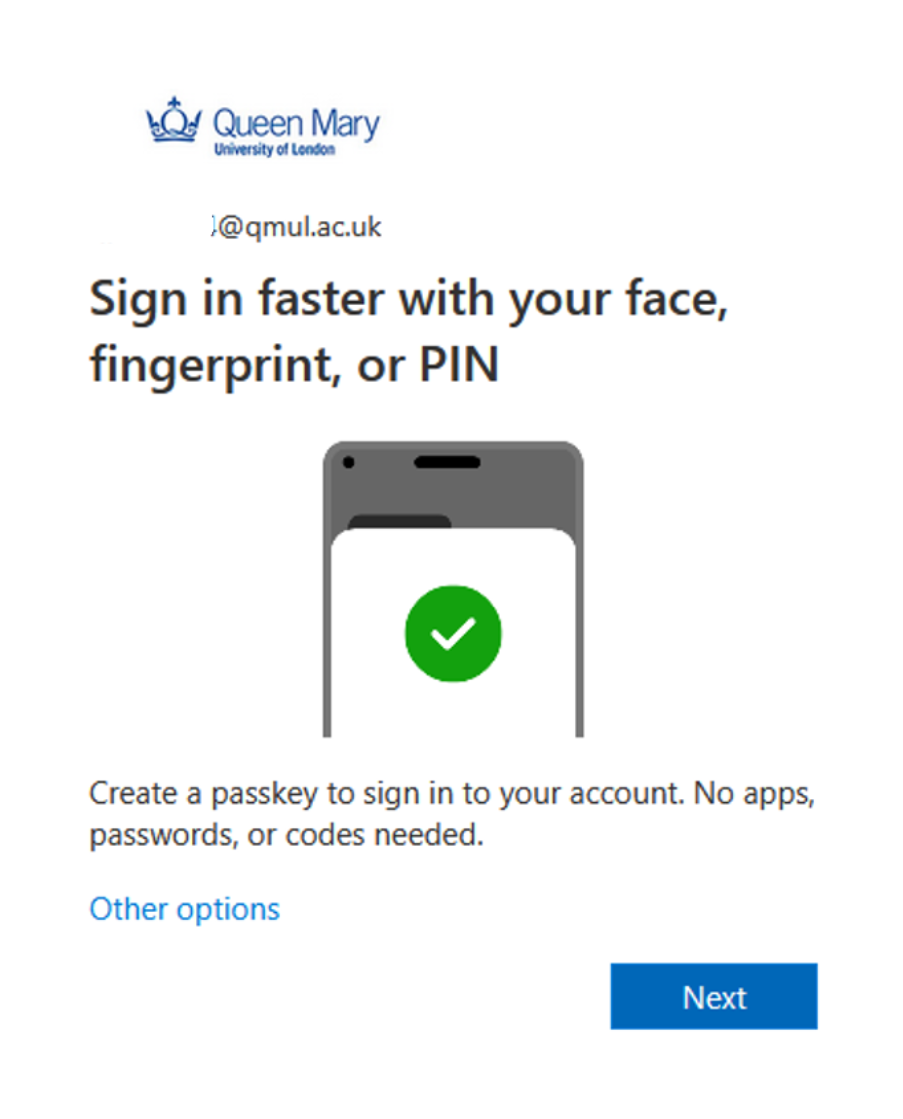
Then under create a passkey to sign into your account select 'Next'
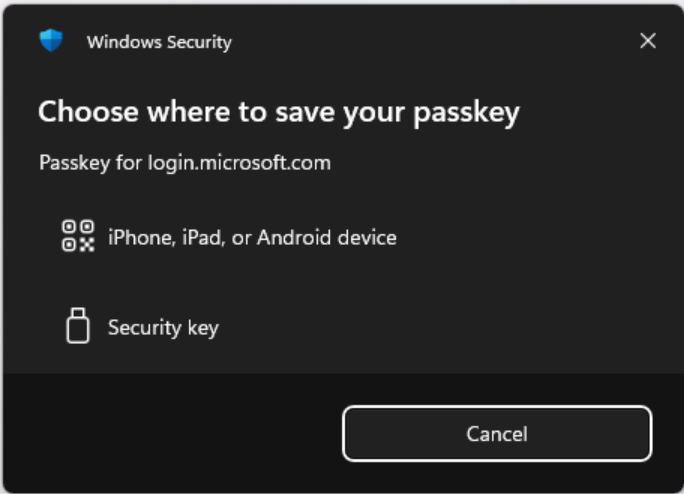
On the 'Choose where to save your Passkey screen' select iPhone, iPad, or Android device, unless you already have an approved security key.
You will be presented with a QR code. In the Microsoft Authenticator app, tap the blue button in the bottom right to add a new authentication method. Select the camera and scan the QR.
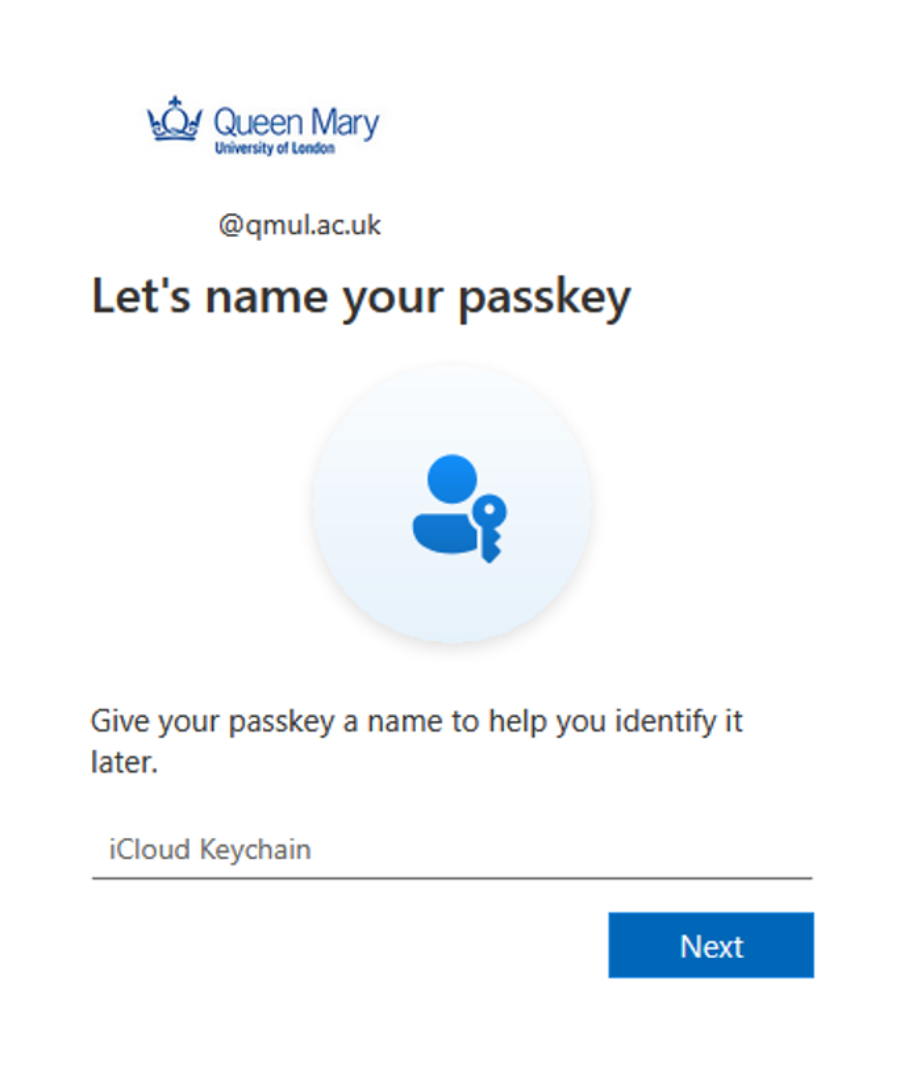
On your phone, hit continue to set up Face or Fingerprint sign in. When done, you will be given a screen similar to the following:
Give this a meaningful name.
Signing in with a passkey
The signing in process will be a little different when signing in with a passkey.
When signing in, you will be asked to choose a passkey.
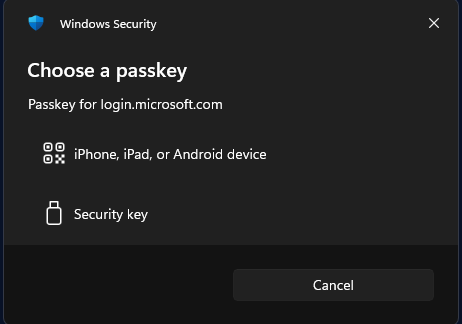
Selecting the top option will display a QR code, and your authentication application should switch to camera mode. Scan the QR and complete the biometric check.
Checking Sign In history and changing authentication methods
Everybody should check their sign in history regularly, to ensure nobody is using your account without your knowledge. This is good practice for personal web sites too. You can check your Microsoft account at:
https://mysignins.microsoft.com/
Authentication methods are under My Account -> Security Info. From here you can add or delete authentication methods. You should always delete anything which looks unfamiliar, or that you no longer use, such as SMS.