
Self Service Password Reset (SSPR)
New staff and students
Oh No! I forgot my Password...
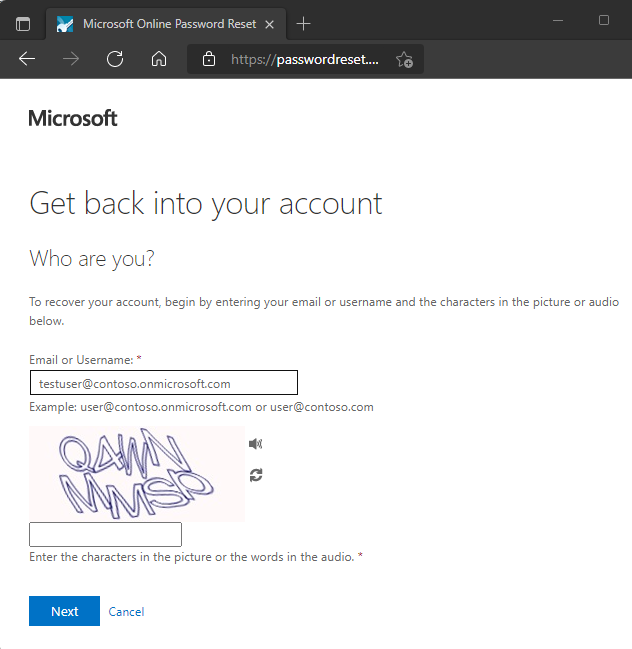
Self-Service Password Reset (SSPR) allows you to reset a forgotten or expired password without needing to contact the IT Service Desk. On an Azure-powered Windows 11 device, password reset can be made available directly from the Windows sign-in screen. Select Reset password and Windows will guide you through the Microsoft Entra verification process. Once your identity has been confirmed using one of the authentication methods registered to your account, you can choose a new password and get back to work.
To use the service, your device needs network connectivity and your account must already be registered for Self-Service Password Reset with the appropriate authentication information. SSPR helps reduce downtime if you forget your password when working away from campus, as the reset process does not normally require intervention from IT. If the password-reset option isn't available from the Windows sign-in screen, you can also access Microsoft's https://aka.ms/sspr from another device or web browser.

Choosing a strong password
QMUL’s policy and process for choosing a secure password is:
- The password must be between 12 and 20 characters.
- The password must:
- Contain UPPERCASE characters (A through Z).
- Contain lowercase characters (a through z).
- Numerals (0 through 9).
- The password must NOT
- Contain special characters (%!&@ etc.)
- You will not be able to reuse a password you have used before
Remote access by ITS to your account
It is sometimes necessary for IT Services staff to remote into your machine to investigate a problem. During the remote session you will not be asked to share your password. If necessary you will enter your own password, the IT technician cannot see the characters entered.
IT Services will never send you an email with a link to change your password or enter personal details. We will always direct you to a QMUL webpage e.g. "Go to the ITS Status page and follow the link to Passwords"
Keeping your password secure
- Remember, your password is private, so keep it to yourself.
- Do not store passwords in your web browser
- Do not write your password down
- Never respond to email requests for your password, even if the email appears to come from Queen Mary. These are phishing attempts in order to steal your information.
I forgot my password and have not yet registered for MFA
You will have to contact Service Desk to have your password reset - IT Service Desk